How to Set Up WiFi on Your Handphone (Step-by-Step Guide)
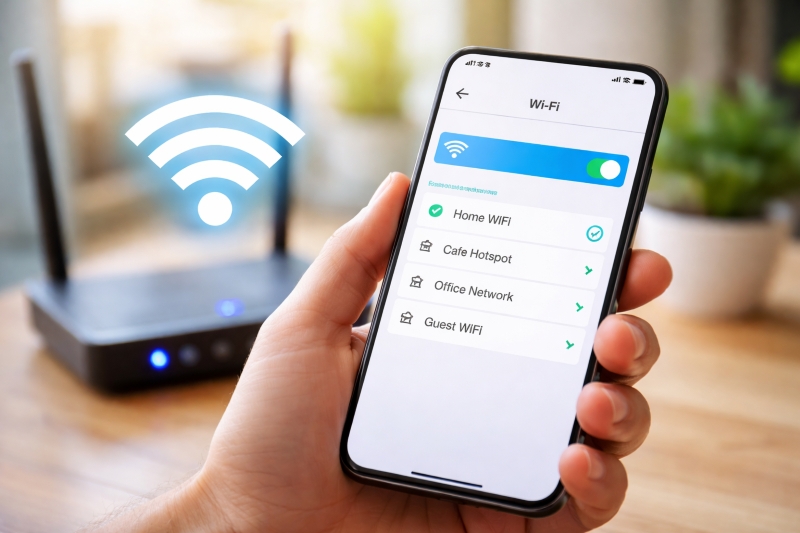
Staying connected to WiFi on your handphone is essential for browsing, streaming, messaging, and saving mobile data. Whether you’re using an Android device or an iPhone, setting up WiFi is quick and simple.
📱 What You Need Before You Start
Before connecting your phone to WiFi, make sure you have:
A working WiFi network (home, office, or public hotspot)
The WiFi network name (SSID)
The WiFi password (if required)
🤖 How to Set Up WiFi on Android Phones
Most Android devices (such as Samsung, Xiaomi, Oppo) follow similar steps:
Step-by-Step:
Open Settings
Tap Connections or Network & Internet
Tap WiFi
Turn on WiFi (toggle switch)
Select your WiFi network from the list
Enter the password
Tap Connect
✅ Once connected, your phone will automatically reconnect to this network in the future.
🍎 How to Set Up WiFi on iPhone
For iPhones, the process is just as simple:
Step-by-Step:
Open Settings
Tap Wi-Fi
Turn on Wi-Fi
Select your network
Enter the password
Tap Join
📌 A blue checkmark will appear next to the network when connected.
⚡ Quick Method (Using Control Panel)
Android:
Swipe down from the top of the screen
Press and hold the WiFi icon
Choose your network and connect
iPhone:
Swipe down from the top-right corner
Tap and hold the WiFi icon
Select your network
🔒 Tips for Secure WiFi Connection
Avoid connecting to unknown public WiFi networks
Use a strong password (mix of letters, numbers, symbols)
Turn off Auto-Join for public networks
Consider using a VPN for extra security
❗ Troubleshooting WiFi Issues
If your phone cannot connect:
Double-check the password
Restart your phone
Restart the router
Forget the network and reconnect
Move closer to the router
🌐 Bonus: Connecting via QR Code (Modern Method)
Some routers or phones allow WiFi connection via QR code:
Open your camera or QR scanner
Scan the WiFi QR code
Tap to connect instantly
📱 What You Need Before You Start
Before connecting your phone to WiFi, make sure you have:
A working WiFi network (home, office, or public hotspot)
The WiFi network name (SSID)
The WiFi password (if required)
🤖 How to Set Up WiFi on Android Phones
Most Android devices (such as Samsung, Xiaomi, Oppo) follow similar steps:
Step-by-Step:
Open Settings
Tap Connections or Network & Internet
Tap WiFi
Turn on WiFi (toggle switch)
Select your WiFi network from the list
Enter the password
Tap Connect
✅ Once connected, your phone will automatically reconnect to this network in the future.
🍎 How to Set Up WiFi on iPhone
For iPhones, the process is just as simple:
Step-by-Step:
Open Settings
Tap Wi-Fi
Turn on Wi-Fi
Select your network
Enter the password
Tap Join
📌 A blue checkmark will appear next to the network when connected.
⚡ Quick Method (Using Control Panel)
Android:
Swipe down from the top of the screen
Press and hold the WiFi icon
Choose your network and connect
iPhone:
Swipe down from the top-right corner
Tap and hold the WiFi icon
Select your network
🔒 Tips for Secure WiFi Connection
Avoid connecting to unknown public WiFi networks
Use a strong password (mix of letters, numbers, symbols)
Turn off Auto-Join for public networks
Consider using a VPN for extra security
❗ Troubleshooting WiFi Issues
If your phone cannot connect:
Double-check the password
Restart your phone
Restart the router
Forget the network and reconnect
Move closer to the router
🌐 Bonus: Connecting via QR Code (Modern Method)
Some routers or phones allow WiFi connection via QR code:
Open your camera or QR scanner
Scan the WiFi QR code
Tap to connect instantly
No comments yet.